


How to Setup Double Opt-In
User engagement and consent are crucial in email marketing, making the Double Opt-In method the optimal choice. Unlike Single Opt-In, which can lead to fake or mistyped emails, Double Opt-In requires users to confirm their subscription, ensuring higher list quality and better compliance with data regulations.
UNDERSTANDING DOUBLE OPT-IN
Double Opt-In is a method businesses use to verify a user's subscription to an email list. After signing up, users get a confirmation email. They confirm their subscription by clicking a link. This ensures genuine interest, improving list quality and engagement.
Step 1: Initial Subscription
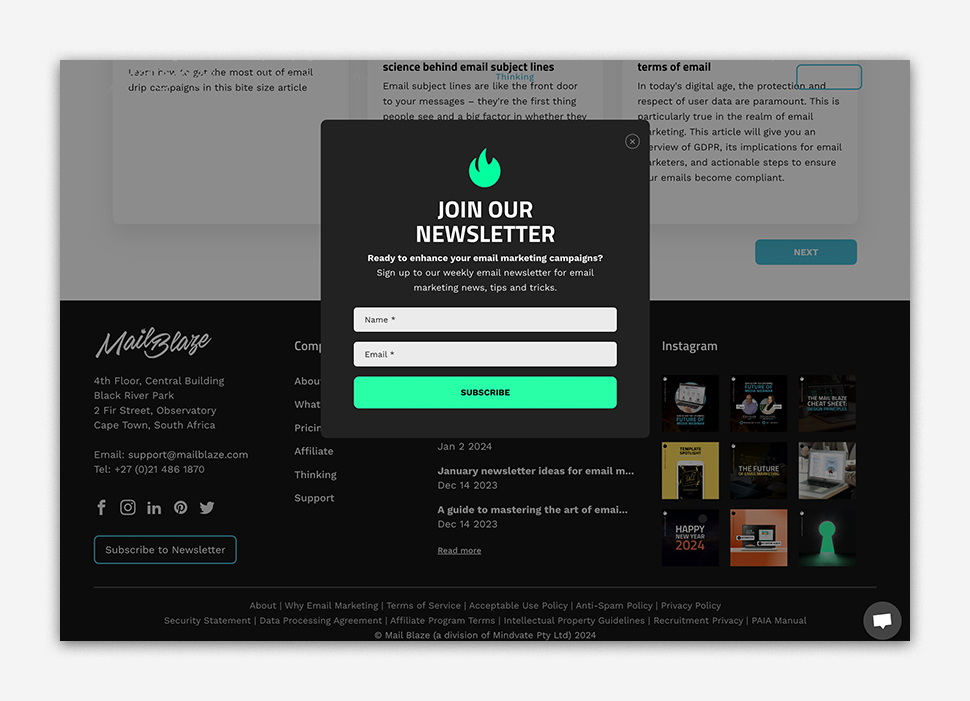
The journey begins when a user decides to subscribe to an email list, typically by filling out a subscription form on a website or landing page. This step is often straightforward, with users providing their email address and sometimes additional information such as their name or preferences.
Confirmation Email
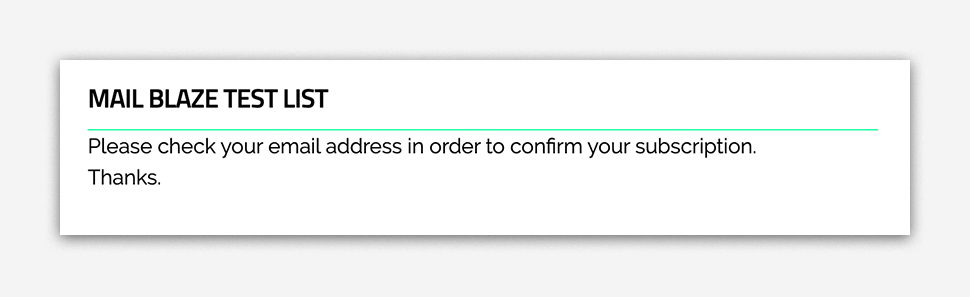
After submitting their information, users encounter the Double Opt-In mechanism in the form of a confirmation email. This email serves as a verification step, requiring users to take action to confirm their subscription. Typically, users are asked to click a confirmation link or button within the email.
Step 2: Confirmation Action
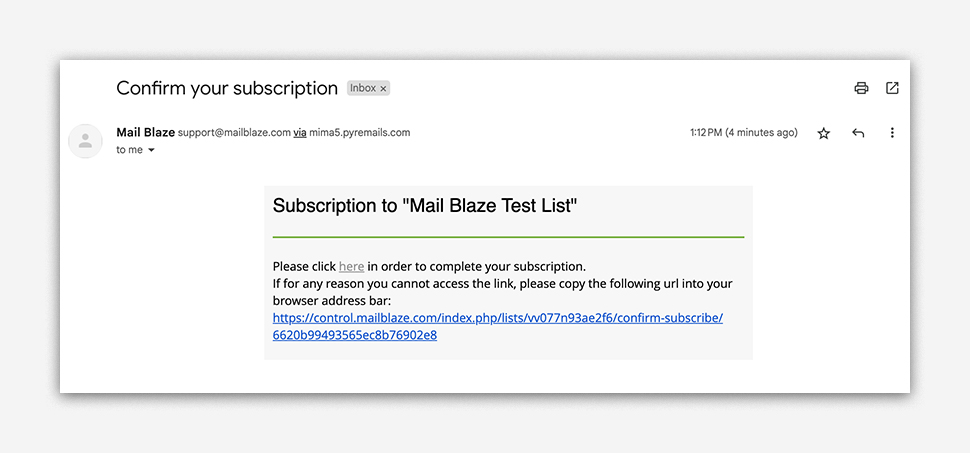
To complete the Double Opt-In process, users must take the necessary action to confirm their subscription. This usually involves clicking on the confirmation link provided in the email, which redirects them to a confirmation page or confirms their subscription directly.
Acknowledgment
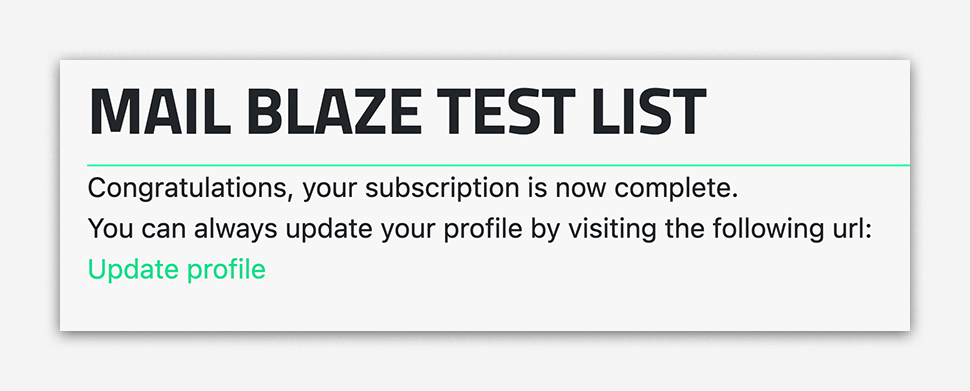
Once users have confirmed their subscription, they typically receive an acknowledgment or confirmation message confirming their successful opt-in. This message often includes a warm welcome, additional information about what to expect from future emails, and sometimes even a token of appreciation such as a discount code or exclusive offer.
BENEFITS OF DOUBLE OPT-IN
Enhanced List Quality:
By requiring users to confirm their subscription, Double Opt-In reduces the chances of fake or mistyped email addresses being added to your list, ensuring higher deliverability rates and engagement.
Compliance with Regulations:
Like Europe with the GDPR and the United States with the CAN-SPAM Act, it's actually required by law to send opt-in confirmation emails in order to get explicit consent from subscribers. By following these regulations, you not only avoid getting into legal trouble, but you also build trust with your subscribers.
Improved Engagement:
Confirming subscribers' intentions through double opt-in is a great way to make sure you're only adding legitimate email addresses to your list. This simple step helps reduce the chances of fake or mistyped emails getting in the mix. Plus, it has the added benefit of improving your email deliverability rates. By confirming subscribers' intentions, you increase the likelihood that your messages will actually land in their inboxes instead of being marked as spam. It's a win-win situation!
Reduced Spam Complaints:
When your subscribers have confirmed that they want to receive your content, it means they're really interested in what you have to offer. This is great because it leads to fewer people unsubscribing and fewer complaints about spam. Plus, it helps you build a positive reputation as a sender and fosters long-term relationships with your audience. So, confirming opt-ins is a win-win situation for everyone involved.
IMPLEMENTING DOUBLE OPT-IN
Mail Blaze simplifies the implementation of Double Opt-In. Here's how to set it up:
Enable Double Opt-In: Login to your Mail Blaze account, go to LIST > Name of the LIST
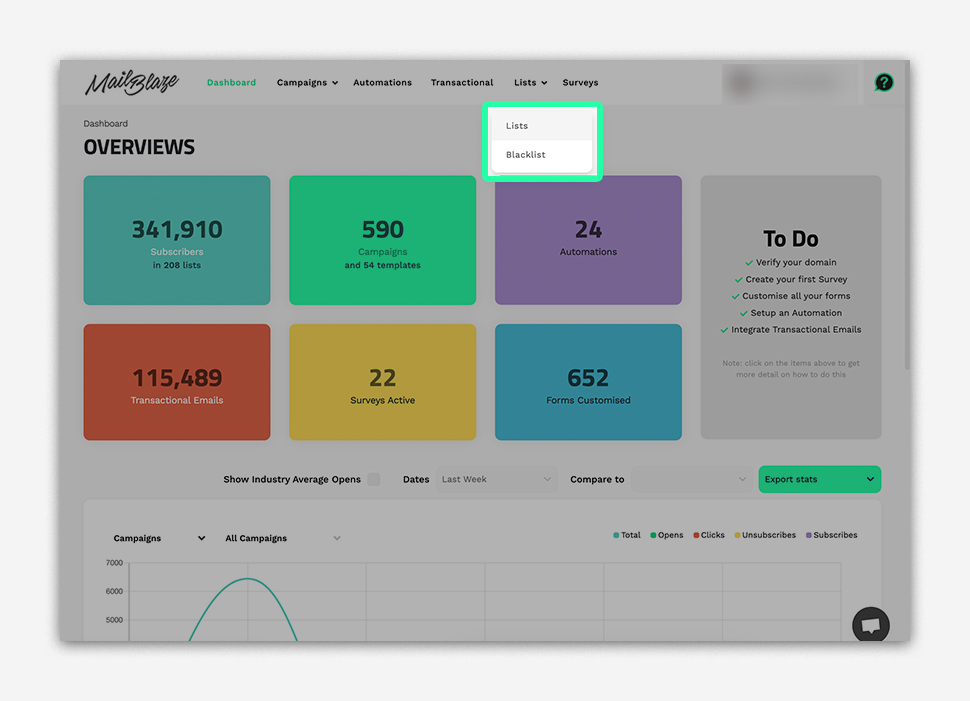
Select SETTINGS, followed by UPDATE LIST DETAILS

In the Opt-In section, select Double Opt-In

PLEASE NOTE: The default setting is Double Opt-In enabled.
Customise the Subscription Form: Access the steps provided here, then proceed to the section titled HOW TO CUSTOMISE YOUR SUBSCRIPTION WORKFLOW.
Subsequently, use the “Publish URL” link to allow your contacts to submit their subscription to your list.
If you intend to integrate your third-party platform CRM with Mail Blaze using the API, you can refer to our API Documentation here
If the plugin employs a post request to our API, simply include SEND_OPTIN:true in the post to activate the double opt-