

How to view and create a Web Version of your campaign
In this guide we’ll show you how to view a web version of a campaign you’ve already sent and show you how you can add a link to an online version of your campaign. This allows you to share your campaigns easily via a link to internal partners or on other distribution channels.
Viewing a Web Link for a Campaign That Has Already Been Sent
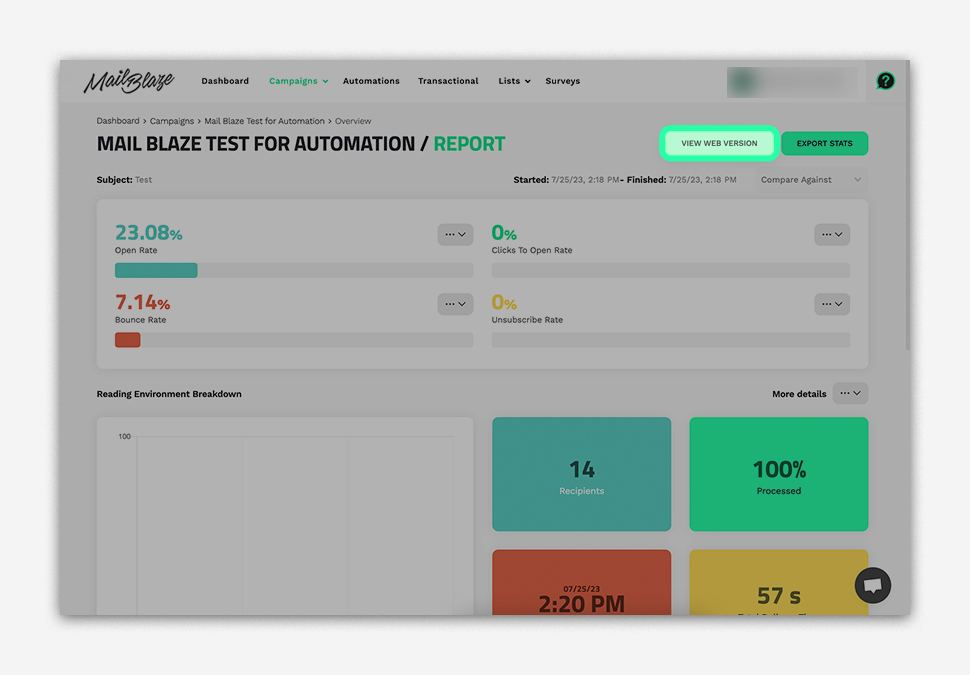
Once you've logged into your Mail Blaze Account you can select the Sent campaign by clicking on CAMPAIGN > CAMPAIGN, then click on VIEW WEB VERSION.
PLEASE NOTE: Only the sent campaign has the available web version.
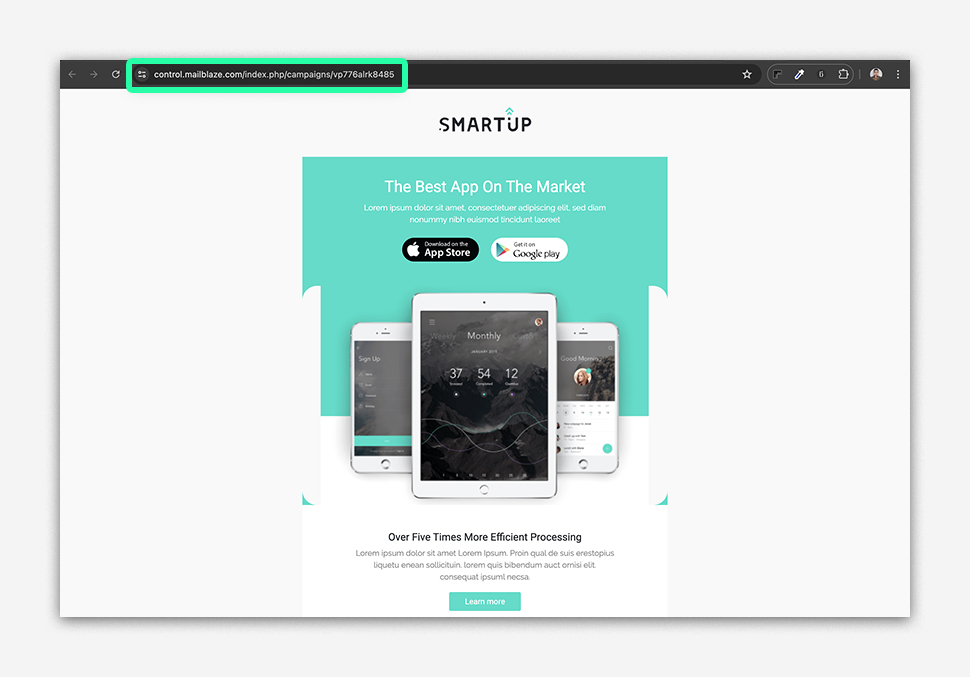
It will open a separate browser tab where you can view the web version. You can use this URL to share on your social media channels or include it in your next campaign.
Having a web version of your email campaign provides several benefits:
- Accessibility: It allows recipients to view the email content even if they have trouble viewing HTML emails or images in their email client.
- Shareability: The web version URL can be easily shared on social media platforms, extending the reach of your campaign beyond email recipients.
- Consistency: Including the web version URL in subsequent campaigns ensures consistent access to archived content for your audience.
How to add your campaign’s Web Version to your campaigns
Adding a VIEW WEB VERSION link to your campaign gives your subscribers an easy way to open the email in their browser. This is helpful if images don’t load correctly or if they prefer viewing the content in a full web format. Most senders place this link at the top of the campaign, usually in a corner, where it’s easy to spot.
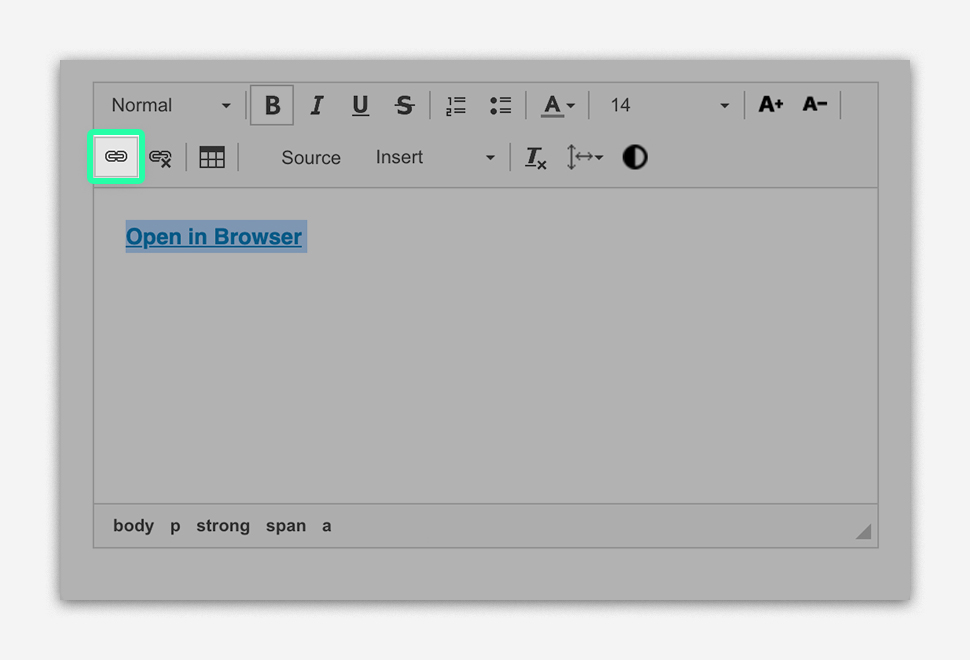
1. Highlight the text you want to link
Type your call-to-action or the phrase you want to add a link to. For example: View Web Version, Open in Browser or View Online.
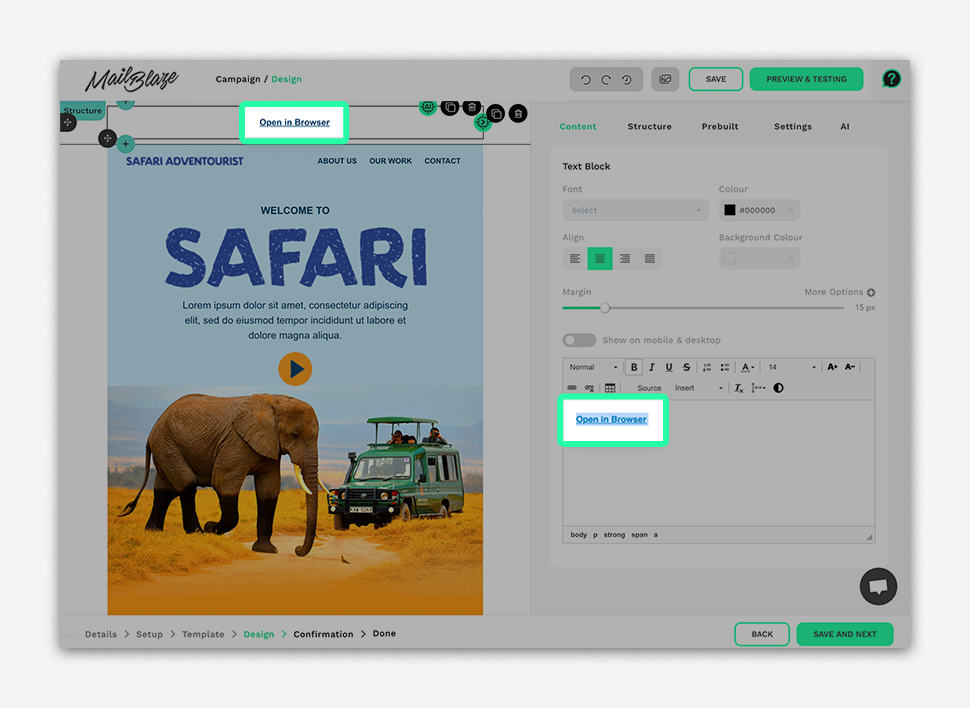
2. Click the link icon
In the TEXT EDITOR, click on the LINK button.
3. Enter your URL in the Dialog Box
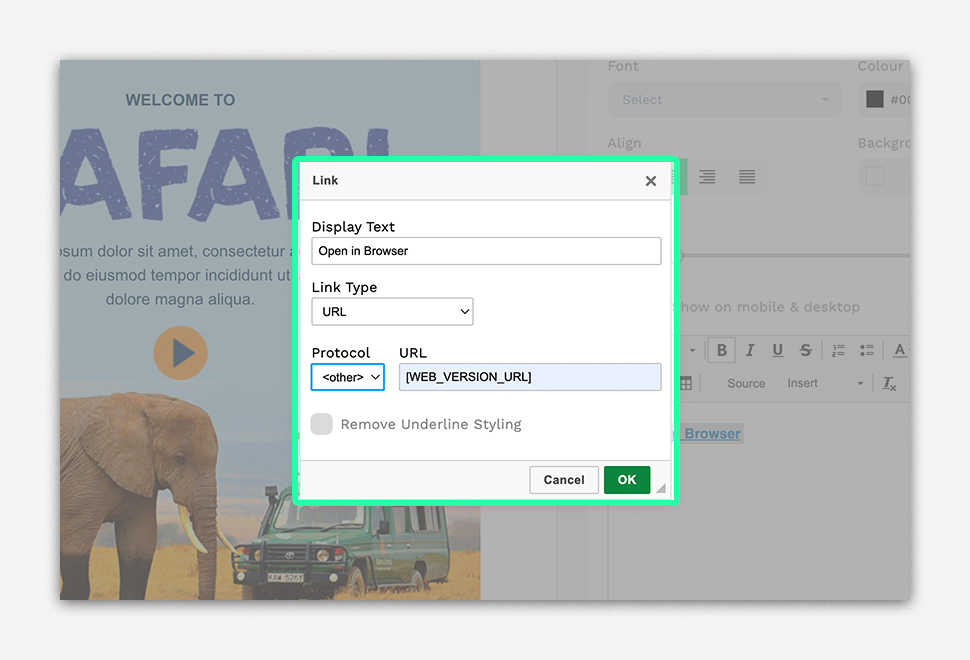
In the URL, type [WEB_VERSION_URL]
Make sure to select
Then click OK.
4. Test your link before sending
Always test your campaign using the PREVIEW & TESTING feature. Click the link to confirm it opens the right webpage. This helps you avoid errors and ensures a good subscriber experience.
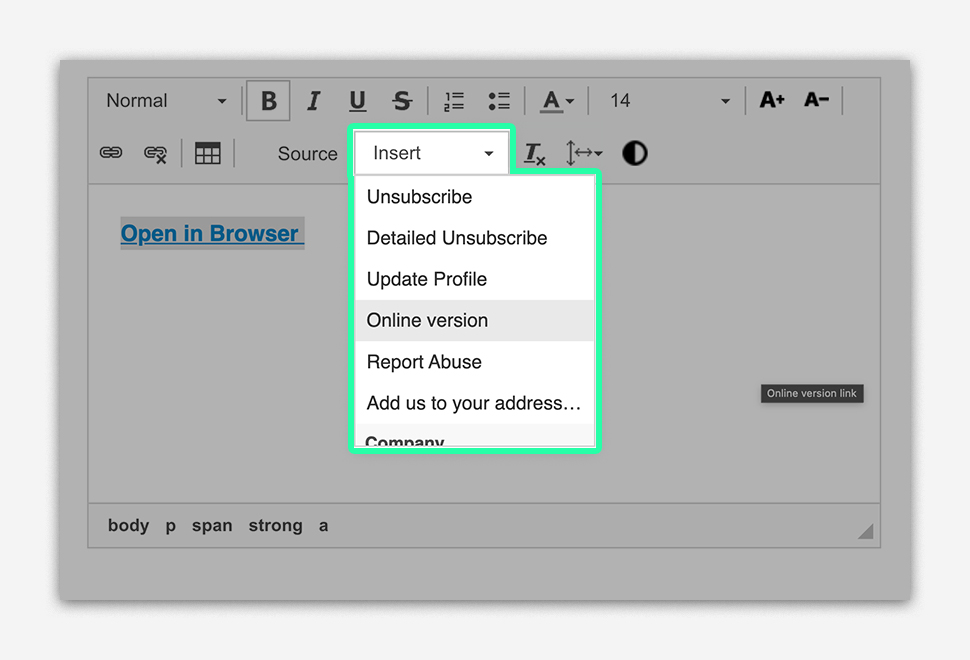
USE INSERT OPTION
Alternatively, you can also use the INSERT option in the TEXT EDITOR and select ONLINE VERSION. This will automatically generate the web version link for you, so there’s no need to manually type the URL and Protocol.