


What Are Custom Defined Segments and How to Use Them
When sending email campaigns, targeting the right audience matters just as much as the message itself. Sending to everyone on your list every time is one of the fastest ways to see engagement drop.
Custom Defined Segments let you filter subscribers based on engagement, device, email client, or subscriber score without building rules from scratch. Instead of setting up criteria manually, you select a predefined group directly inside the Campaign Wizard and send to exactly the right people.
What Are Custom Defined Segments?
Custom Defined Segments are predefined subscriber filters available when creating a campaign. They group subscribers based on behaviour and system data, and they update dynamically. As a subscriber's activity changes, they move in or out of a segment automatically.
Segments are available across four categories:
- Engagement
- Device
- Email client
- Subscriber score
Why Segmenting Your Audience Improves Results
Sending the same message to your full list can quietly hurt your performance. Inactive subscribers who don't open or click pull down your overall engagement, and that affects deliverability over time.
When you segment:
- Highly engaged subscribers receive your priority content
- Inactive subscribers can be re-engaged with a targeted approach
- Your engagement signals get stronger with every send
- Deliverability improves the more consistently you reach the right people
The goal of every campaign is a response. Segments help you send to the people most likely to give you one.
Types of Custom Defined Built-in Segments
1. Engagement
Engagement segments group subscribers based on their recent interaction with your campaigns.
Available options:
- New Subscribers – Joined in the last 7 days
- Active Subscribers – Opened a campaign in the last 30 days
- Inactive Subscribers – Haven’t opened a campaign in the last 90 days
These are useful for welcome campaigns, re-engagement campaigns, or excluding inactive subscribers from important sends.
2. Device
Device segments group subscribers based on how they access emails.
Available options:
- Mobile
- Desktop
- Webmail (browser-based email such as Gmail or Yahoo)
These segments are useful for layout optimisation and responsive design testing.
3. Email Clients
Email Client segments group subscribers based on the app or provider used to open emails.
Available options include:
- Gmail
- Outlook
- Yahoo
- Android
- iOS
These segments help with testing rendering and targeting users on specific platforms.
4. Mail Blaze Subscriber Score
The Subscriber Score measures engagement based on recent open and click activity. Scores update automatically and cannot be changed manually.
Subscriber Score Breakdown
| SCORE | DESCRIPTION |
|---|---|
| No score | Subscribers who haven’t received any emails yet. |
| 0 | Subscribers with no email opens (disengaged) |
| 1 | Subscribers who have opened emails (minimal engagement) |
| 2 | Subscribers with opens in the last 2 months (moderate engagement) |
| 3 | Subscribers with clicks in the last 2 months (active engagement) |
| 4 | Subscribers with more than 2 clicks in the last 2 months (highly engaged) |
| 5 | Subscribers with more than 4 clicks in the last 2 months (super engaged) |
Higher scores indicate stronger engagement. Lower scores are a signal to re-engage or exclude from sensitive sends.
How to Use Custom Defined Segments
To apply a segment when creating a campaign:
- Go to CAMPAIGN in the Main Menu.
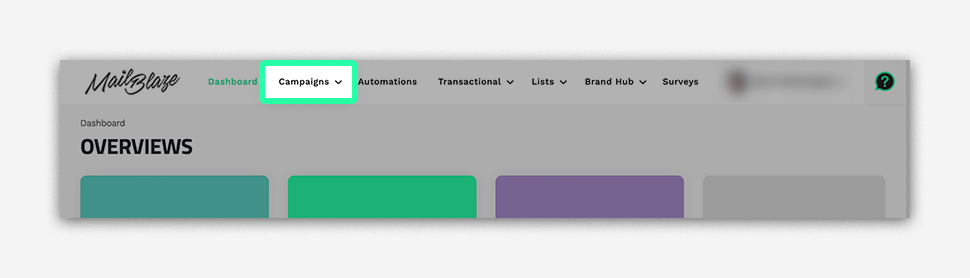
- Click CAMPAIGN again.
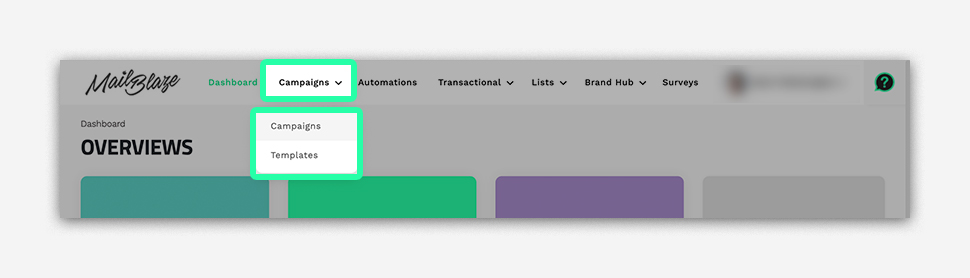
- Click on CREATE NEW.
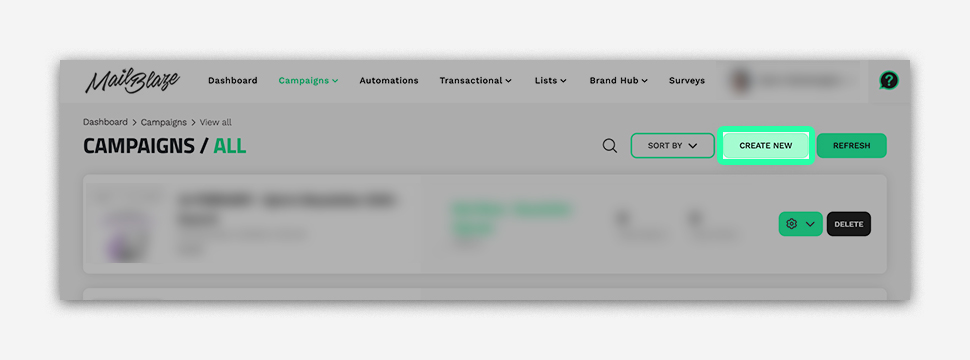
- In the Campaign Wizard, go to the DETAILS section, select your list. Then, under CUSTOM DEFINED SEGMENT, you’ll find the Custom Defined Segments option. From there, choose the segment you want to use — Engagement, Device, Email Client, or Subscriber Score.
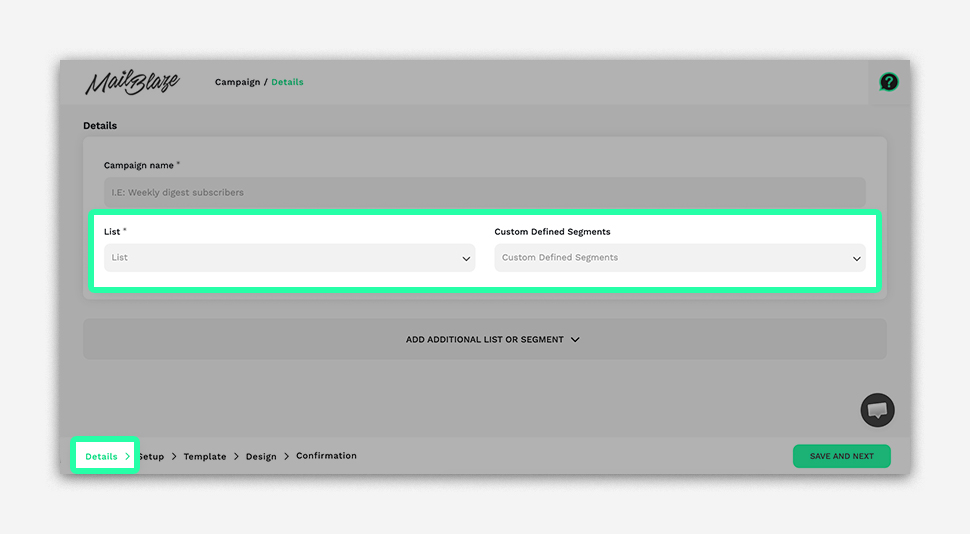
- Complete the rest of your campaign setup and send.
The selected segment will automatically filter your recipients based on the chosen criteria.
When to Use Custom Defined Segments
These segments are useful when you need to:
- Target engaged or inactive subscribers quickly
- Optimise campaigns for specific devices
- Test rendering across email clients
- Prioritise highly engaged contacts
- Exclude low-engagement subscribers from sensitive campaigns
The right segment gets your message in front of the right people. That's where engagement starts.